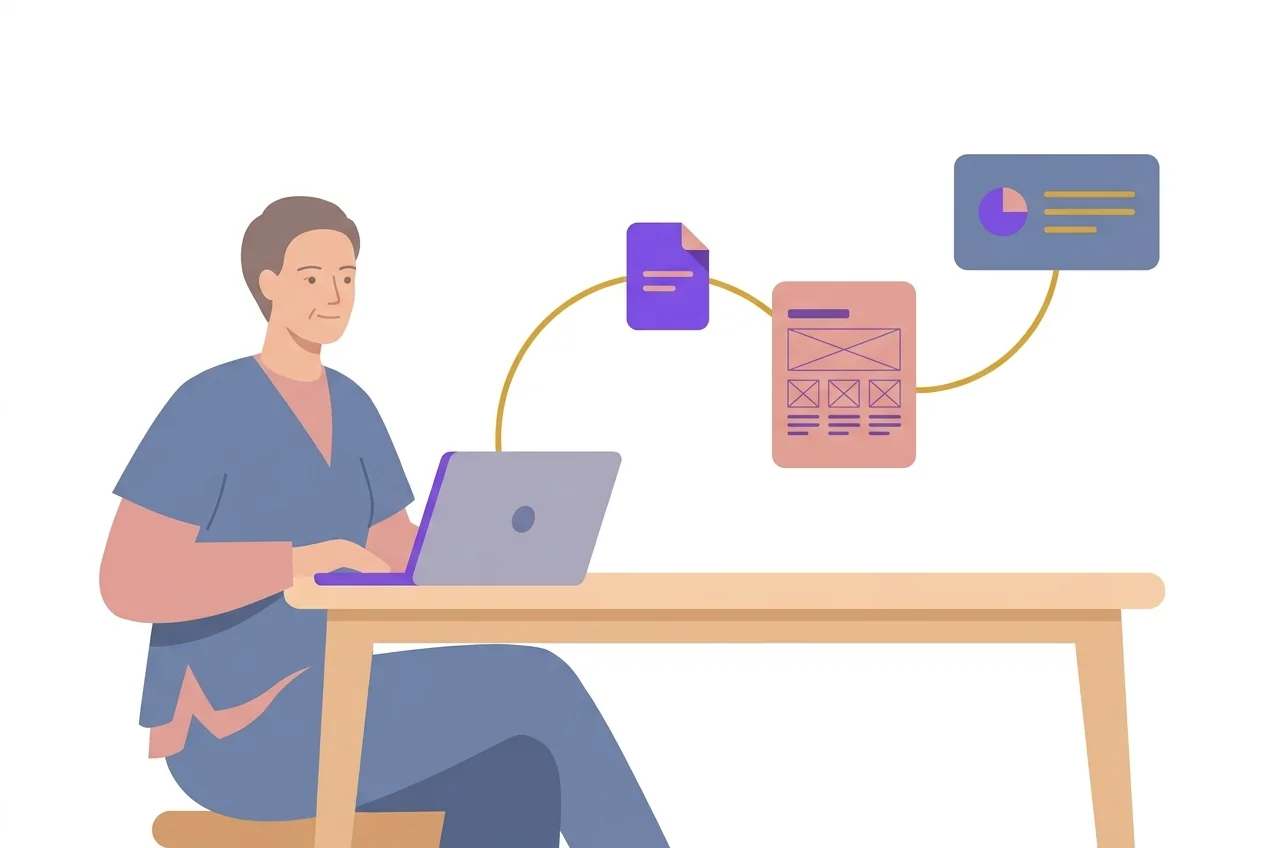
Your first AI workflow
Using AI for one-off questions works, but it's when you build workflows around recurring tasks that time really starts to be saved.
From one-off questions to a workflow
Most people use AI like this: they have a task, open ChatGPT, write a prompt, copy the answer, and close the tab. Next time they start over from scratch.
It’s like having an assistant who starts from zero every time.
A workflow is something else. It’s a sequence of steps you repeat regularly, where AI understands the context and builds on it. When it clicks, it can save quite a bit of time, especially on tasks you do often.
Prerequisite: AI needs access to your files
The difference between chatting with AI and having a workflow is access. An AI that only lives in a chat window has to have everything pasted in fresh every time. An AI that has access to your folders, documents and drafts can pick up where you left off, read the source material itself, and save new material in the right place.
Several tools can do this: Claude Code, Cursor, Codex among others. We’ve landed on Claude Code ourselves, and that’s why we use it as the example in this guide. But the point isn’t which tool you pick, it’s that the tool can actually work in your project. When the AI can read your files, create new ones, and build on what you already have, that’s the difference from starting over every time.
The AI also needs to know why
Access to the files is half the job. The other half is background.
Think about a new colleague. On day one they have access to all your folders, but what they produce is still generic. Six months in they know who the clients are, what you’re trying to achieve this year, and how you sound when you write. That’s the difference you want to give the AI, except the onboarding takes ten minutes instead of six months.
Half a page is enough, a text file in the folder the AI works in:
- What you do and for whom
- Who the clients are and what they care about
- This year’s goals or priorities
- Tone of voice, and words you use or avoid
Write it once, and it lifts every workflow in this module.
The difference shows immediately. “Write a follow-up email” without background gives you a polite standard email. With the base context, the email references the client’s goals, mentions your ongoing delivery, and sounds like you. Same prompt, considerably better material.
One thing to keep in mind: don’t put anything sensitive in there, like personal data or details under NDA. We come back to that in module 9 on local models. And in module 4 we show how we set this up concretely in Claude Code.
Three workflows to start with
1. Meeting summary → To-do list → Follow-up email
Without AI:
- You sit in a meeting and try to take notes
- After the meeting you clean up the notes
- You write a summary for the team
- You create an action list in your task tracker, e.g. Linear, Asana or Jira
- You send a follow-up email to the client
It takes a lot of time, and things slip through easily.
With an AI workflow:
-
You record the meeting
-
You put the transcript in a folder the AI has access to and say:
“Summarize the meeting. List decisions and actions with owners. Write a follow-up email to the client in a professional but friendly tone.”
-
AI gives you everything in one go. You review, adjust, send.
Tip: In Claude Code you can build a skill for this, so you don’t even have to write the prompt each time. Just hand over the transcript.
2. Idea → Wireframe → Prototype
This is our most important workflow as designers.
Step 1: Brainstorm Describe what you need: “I need a landing page for an AI guide. The audience is designers and project managers. The page should have a hero, a module overview, and a sign-up form.”
AI gives you three concepts with different angles, like brainstorming with a colleague.
Step 2: Wireframe “Show concept 2 as a simple wireframe. ASCII format, just layout and content blocks.”
┌──────────────────────────────┐
│         HERO SECTION          │
│  Headline: AI in practice     │
│  Subtext + CTA button         │
│                               │
├──────────────────────────────┤
│      MODULE OVERVIEW (grid)   │
│  [Module 1] [Module 2] [Mod 3]│
│  [Module 4] [Module 5] [Mod 6]│
│                               │
├──────────────────────────────┤
│        SIGN-UP FORM           │
│  Name / Email / Company       │
│  [Take me to the guide →]     │
└──────────────────────────────┘
In 30 seconds you have a layout to reason about.
Step 3: HTML prototype “Build this as a simple HTML page with basic CSS. No frameworks, just plain HTML I can open in the browser.”
A minute later you have a clickable page you can show to a colleague or client.
Step 4: Production “Convert this to a React component that fits our design system with Tailwind CSS.”
Going from idea to a working component can happen fast. And for some tasks we don’t even need to open Figma, depending on what’s being done.
3. Research → Summary → Presentation
Situation: You need to present goals, strategy, ways of working and so on to the leadership team.
Step 1: “In this folder you’ll find material about our unit, company goals and so on. Structure the material around me giving a quarterly presentation to the leadership team.”
Step 2: “Turn the material into a presentation with 8 slides. Each slide should have a headline, 2–3 bullets, and a takeaway.”
Step 3: “Write a presentation script, what I should say for each slide, in a relaxed but professional tone.”
Going from raw notes to a draft presentation happens quickly, often in under half an hour instead of a whole afternoon. It’s like giving feedback on something a colleague put together, instead of staring at a blank page.
How to build your own workflow
Before you start: make sure the AI has access to the files and folders you’re working in. Otherwise it’s still copy-paste, just with more steps.
Think about your most repetitive tasks. Which ones do you do every week? Probably:
- Identify the task, what do you do that takes time and follows a pattern?
- Describe the steps, what’s the input, which steps happen, what’s the output?
- Test with AI, give AI the task and see how good the result is
- Refine, adjust your instructions until the result is good enough
- Automate, save it as a skill or template you can reuse
A few questions to ask yourself:
- Which documents do we create every week? (Reports, emails, summaries)
- Which tasks follow the same pattern? (Meetings → follow-up, research → presentation)
- Where do we spend the most time on formatting and structure instead of thinking?
Common mistakes
“I give AI too little context” Instead of “write an email”, give background: “Write a follow-up email to our client Anna after the design workshop. We showed three concepts, she liked concept 2 but wanted changes to the navigation. The tone should be professional but personal.”
“I try to do everything in one prompt” Break it into steps. First brainstorm, then structure, then write. Each step builds on the previous one, just like you’d work yourself.
“I don’t edit the result” AI gives you a draft, not a finished product. Your job is to review, adjust the tone, add your insights. It should sound like you, not like a robot.
Our workflow
The workflow we use daily at uxare.design:
- ASCII wireframes, quick sketches straight in the terminal
- HTML prototypes, interactive prototypes in the browser
- React prototype, production-ready code in our design system
- Iteration, the client gives feedback, we iterate with AI directly
For prototypes we usually don’t have to dig into the code ourselves, which lets us spend more time on design and user experience. When it then moves toward production, we naturally take a closer look at what AI has produced.
Next step
In the next module we go from single workflows to agentic loops: how agents build, review each other and ask instead of guessing, and how you only step in for the decisions you want to make yourself.
Yes, we wrote this together with Claude. It would be a bit odd otherwise, but we know what we want to say, and we’ve read, poked and discarded until the phrasing, opinions and choices are ours.